
In a previous blog post I decided to be the 100th person to lay out why SCRUM is a good fit for Power Platform (or D365 CE) Implementations.
But there a ton of disruptors to that idea out there and one of course is AI. I don’t think AI is here to “replace” Scrum of course – not to mention BAs (yes, BAs!!!!!), functional consultants, architects, or devs. I think vibe fits into each of these roles but it’s about POWERING them so everyone ends up good at their job. It levels the playing field, reduces risk, and increases the chance of project success. And KEY to that is implementing Scrum – or Hybrid Scrum (scrum with phases) successfully.
The Key is using AI to do what it does best:
- summarize chaos
- propose structure
- draft the first 70% so humans can argue about the last 30%
- and reduce the amount of time we waste doing the same ceremonial paperwork every sprint
And in the Dynamics 365 / Power Platform world (where most projects are configuration-heavy, iterative by nature, and full of “we’ll know it when we see it”) that is invaluable.
SO – the question is – dealing with a phased scrum – how can AI – and while we are at it, automation – help at every step of the way?
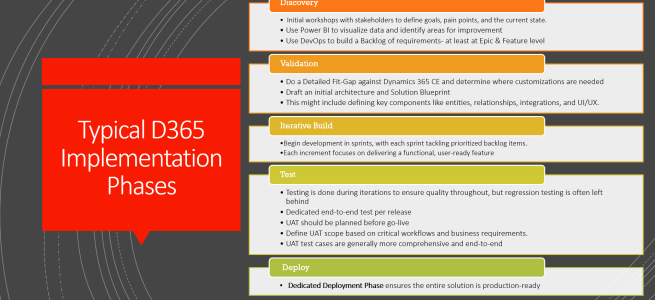
Well, first let’s make sure we are on the same page – phases? Yeah, phases. We all know that few people are out there doing REAL agile when it comes to implementations. Product development, maybe, but not implementations – usually it’s a hybrid waterfall.
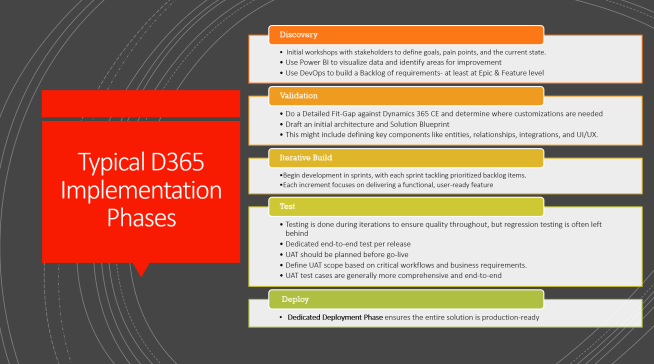
Ok – 95% of people reading this will know these phases already. If you are interested, let me know in the comments or on linkedIn and ill post about how to run each of these phases – specifically within a D365 or Power Platform implementation.
But for now, let’s focus solely on AI and automation – what can you TRY to implement on your own projects? I’m sorta mid-way through my journey of discovery here – so i’m eager to hear you guys let me know if you try these out and how well they work for you.
Phase 1: Discovery
(aka: “everyone has opinions and none of them are written down”)
1) Workshop transcription + meeting recap + “what did we just agree to?”
Tools: Microsoft Teams Recap + Copilot (M365 Copilot)
Implementation idea: Record/transcribe workshops, then use Copilot to generate a recap with decisions, action items, and open questions.
This one is dead simple and immediately useful because Teams “Recap” is basically designed for it—intelligent recap uses things like the transcript (and other meeting artifacts) to drive the AI summary.
Try it:
- Turn on transcription for key workshops.
- After the meeting, use Recap/Copilot to extract:
- decisions
- action items
- unresolved questions
- “risks I heard but nobody wrote down”
2) Sentiment / friction detection
Tools: Azure AI Language (Sentiment + Opinion Mining)
Implementation idea: Run sentiment/opinion mining on workshop notes, survey responses, or retro comments to spot recurring pain points and “politely hidden” disagreement.
This isn’t about turning consultants into mind readers. It’s about catching patterns like:
“Every time we mention security roles, people start sounding like they want to flee the country.”
Azure AI Language supports sentiment analysis + opinion mining in a pretty straightforward way:
https://learn.microsoft.com/en-us/azure/ai-services/language-service/sentiment-opinion-mining/overview
Try it (lightweight):
- collect workshop feedback in a quick form (even anonymous)
- run sentiment/opinion mining
- trend it over time (per phase / per sprint)
3) Requirements clustering → suggested epics/features/stories
Tools: Copilot Chat (M365), Windows Copilot, or Copilot Studio agent
Implementation idea: Feed Copilot your raw notes and ask it to:
- group themes
- propose epics + features
- identify duplicates
- list assumptions and missing info
This is where AI is legitimately strong: it’s basically a structure engine for messy text. In fact I plan to do an entire post – and VIDEO on this really soon….. I actually suggest using Github Copilot / Github Enterprise + Power Automate for this kind of thing. So instead of JUST doing it in a chat, then copying and pasting into DevOps. You can produce the entire context then integrate / upload in one go. And yes, you still need to validate it.
If you want to know exactly how to do this – let me know in the comments below and i’ll write a step-by-step
Phase 2: Validation (Design)
(aka: “we’re not building yet, but we’re definitely arguing already”)
4) Architectural drafts (first pass)
Tools: GitHub Copilot Chat in VS Code (docs + diagrams + pseudo-architecture) or Github Enterprise
Implementation idea: Use Copilot to draft:
- a solution blueprint outline
- integration options comparison
- data migration approach skeleton
- security model “first pass”
Important realism note: GitHub Copilot Chat is primarily a coding assistant, not a generic business-writing chatbot. If you treat it like one, it’ll either refuse or produce fluff.
https://docs.github.com/en/copilot/responsible-use/chat-in-your-ide
If you want Copilot to be more consistent across a repo, VS Code supports Copilot customization / instructions so it responds in a more predictable way: https://code.visualstudio.com/docs/copilot/customization/overview
5) Mockups from prompts (the “show me something” move)
Tools: Copilot in Power Apps
Implementation idea: Use Copilot inside Power Apps to generate an app starting point from natural language, then iterate.
Microsoft is explicitly pushing Copilot as a “describe what you want → generate an app/data model” accelerator.
Is it going to generate your production-grade model-driven app? No.
Will it help you produce a fast prototype to trigger stakeholder feedback? Yes.
This one is again a no-brainer – time to start vibe app-building! This is what all those posts all over the internet about “low code is dead” are all about – you went from needing to build mockups in a tool in order to get feedback so that you could draft real design artifacts…. so that you could write real code, to building throwaway POC apps using low-no-code tools – to this.
6) Automated backlog construction (draft stories/AC fast)
Tools: GitHub Copilot (VS Code) + Azure DevOps Boards (manual copy/paste, or automation later)
Implementation idea: Have Copilot draft user stories + acceptance criteria in markdown, using your team’s template, then paste into Azure DevOps. Again, I plan to give a full post on this later.
This works best when you give Copilot structure:
- “Use this exact story format”
- “Write AC as Given/When/Then”
- “Assume this is for a model-driven app”
- “Call out security + edge cases”
If you want to get serious about output quality, lean on prompt best practices (GitHub has a solid guide).
Reality check: Copilot won’t magically understand your client’s business.
It will, however, save you from spending 40 minutes writing the first draft of something you’re going to rewrite anyway.
Phase 3: Iterative Build
(aka: “this is where dreams go to either become software… or become scope creep”)
7) AI-based prioritization (only after you have history)
Tools: Azure DevOps Analytics → Power BI → (optional) Azure ML
Implementation idea: Start with Analytics + Power BI to make prioritization visible. Once you have enough historical sprint data, then consider ML forecasting.
Azure DevOps has a first-class Analytics service you can pull into Power BI using the OData feed.
And Microsoft’s own docs explicitly warn that the simplest approach works best for smaller orgs/projects (because it can pull a lot of data client-side).
This is the practical progression:
- Get Analytics into Power BI (value now)
- Create Analytics Views filtered to what you actually care about
- Only then consider ML forecasting (because now you have clean, shaped data)
If you’re on a small project with a tiny backlog and no delivery history?
Skip the ML. Don’t build a rocket engine to drive to the grocery store.
Confession: I don’t have much experience actually doing this – so if do you, please share!
Phase 4: Test
(aka: “we all believe in quality, until the deadline shows up”)
I’ve Kept the next 3 point light because I’m going to write an entirely separate blog post on how to implement automated Testing using AI and DevOps – It’s been my quest for some time to get these processes to a good place in implementations I’ve led. A big part is automated tests, which definitely includes an AI component. But so that you can’t call this post incomplete – here’s the cliff notes version:
8) Low-code test automation for Canvas Apps
Tools: Power Apps Test Studio (low-code tests)
Implementation idea: Use Test Studio to record interactions and build repeatable UI tests, then integrate into your deployment process.
https://learn.microsoft.com/en-us/power-apps/maker/canvas-apps/working-with-test-studio
9) AI-Generated Test Cases (and PLans / Suites) in DevOps from Backlog Items
Tools: Azure OpenAI (or similar) + your story/AC text
Implementation idea: Generate draft test cases from user stories with acceptance criteria, then have humans validate them before converting them into Test Studio / Test Engine scripts.
This is where you can get value fast if your team is disciplined:
- AI drafts the tests
- humans approve the tests
- automation runs the tests
If you skip the human validation step, you’re basically asking a robot to sign off on your release. That’s a bold strategy.
10) Automated System Testing
Tools: Power Apps Test Engine (preview)
Implementation idea: Use Test Engine for more robust automated testing across Power Platform apps. Github Copilot can help create the test scripts from DevOps test cases.
Note that ALL completed Work Items (User Stories, Product Backlog Items, Bugs) should be functionally sanity-tested by developers and preferably a seasoned QA / Functional Consultant before further (Regression, penetration, load) testing gets automated.
That said; Microsoft positions Test Engine as “professional-grade testing” for Power Platform solutions.
https://learn.microsoft.com/en-us/power-platform/test-engine/overview?tabs=manual
Phase 5: Deploy
(aka: “ALM: where fun goes to die… unless you automate it”)
11) Power Platform Pipelines (ALM that doesn’t hate you back)
Tools: Power Platform Pipelines
Implementation idea: Use pipelines to deploy solutions + environment configuration (connection refs, env vars, etc.) across environments.
Pipelines in Power Platform are Microsoft’s attempt to “democratize ALM” by bringing CI/CD-style deployments directly into the platform. It’s meant to be approachable for makers/admins while still supporting proper governance.
Why people like it:
- It’s native.
- It’s less “DevOps engineer required to breathe air.”
- It pushes teams toward the right habits: solutions, controlled promotions, repeatable steps.
What it’s actually doing under the hood:
- Moving solutions from one environment to another, with the right approvals and checks.
- Helping standardize deployments so they aren’t artisanal hand-crafted events.
Practical step-by-step guide: https://www.matthewdevaney.com/the-complete-power-platform-pipelines-alm-setup-guide/
12) Azure DevOps + Power Platform Build Tools
Tools: Power Platform Build Tools for Azure DevOps
Implementation idea: Use the Build Tools tasks to export/import solutions, run checks, and orchestrate release pipelines in Azure DevOps.
Power Platform Build Tools are a set of Azure DevOps tasks that automate solution export/import, environment tasks, and quality checks. They’re designed to slot into classic build/release pipelines.
Why you’d go this route:
- You already live in Azure DevOps.
- You want fully scripted control (multi-stage pipelines, approvals, branching strategies, etc.).
- You want a deployment approach that fits into a bigger engineering ecosystem.
Core concept (simple version):
- Export solution from Dev
- Pack/unpack / store artifact
- Run checks (Solution Checker, etc.)
- Import to Test/UAT/Prod
- Repeat
Microsoft even breaks down the Build Tools tasks and pipeline composition patterns.
Where to start:
- Build Tools docs: https://learn.microsoft.com/en-us/power-platform/alm/devops-build-tools
- Example “detailed step-by-step” blog: https://community.powerplatform.com/blogs/post/?postid=a882ba6c-af56-4540-8e0c-b37dec921f6d
If pipelines are “ALM for the Power Platform crowd,” Build Tools are “ALM for people who are going to ask what your branching strategy is within 30 seconds.”. Overall In my Experience DevOps + Build Tools is the superior route on large or complex projects. and when dealing with custom code.
13) AI-Generated Release Content
Tools: GitHub Copilot (docs + YAML drafts)
Implementation idea: Use Copilot to:
- draft pipeline YAML scaffolding
- document your deployment steps
- generate release checklists
- summarize what changed between versions
Even the “Copilot helps with YAML/doc” angle has plenty of real-world examples.
So… what should you actually do first?
(aka: “don’t boil the ocean, pick 3 things”)
Here’s the sane roadmap I’d recommend to any org trying to “AI-enable delivery” without turning the project into a lab experiment:
Step 1: Start with “free value”
- Teams transcription + recap summaries
- Copilot clustering of discovery notes into epics/features/stories
- Power Apps Copilot for quick prototypes
Step 2: Make delivery data visible (before predicting anything)
- Azure DevOps Analytics → Power BI baseline reporting
- Analytics Views so you’re not dragging the entire universe into dashboards
Step 3: Automate ALM (because manual deployments are pain)
- Power Platform Pipelines if you want “native” ALM
- Build Tools in Azure DevOps if you want full pipeline orchestration
Step 4: Add testing discipline (pick one lane)
- Test Studio (simpler)
- Test Engine (more advanced / preview)
Step 5: Only then start doing “AI prediction”
- capacity forecasting
- effort estimation models
- prioritization prediction
Because prediction without clean inputs is just astrology with extra steps.
Closing thought
AI doesn’t “make Agile easier.” It makes it harder to justify not being Agile, because it removes a lot of the excuses:
- “We don’t have time to summarize workshops”
- “We don’t have time to write it properly”
- “We don’t have time to keep the backlog clean”
- “We don’t have time to document decisions”
Turns out… we mostly didn’t have time because we were wasting it.
If you’re already running Scrum (or hybrid agile) on Dynamics 365 / Power Platform projects, AI is basically a force multiplier—as long as you keep humans accountable for decisions, scope, and quality.

 Power Platform Scrum Master
“Prediction without clean inputs is just astrology with extra steps” is the line that holds the whole piece together. Most teams want to skip straight to AI forecasting before they’ve built the data discipline that makes forecasting meaningful. The sequencing you’ve laid out here is the part most implementation guides get wrong.
In your experience, what’s the earliest phase where teams typically try to shortcut the process and end up paying for it later?
LikeLike