

Security Series Table of Contents
Part Two: User-Scoped Permissions
Welcome back to my security series! In the {last part} we got into user-scoped permissions for Dynamics 365. We showed you how to add a new user, how to give them the default Customer Service Representative role, and then — the main event — how to set up your own security role so the user gets user-scope permission on cases instead of organization-level access. And I showed you the two ways to build that role: either copy the existing Customer Service Representative role and scope the Case table down to user scope (changing nothing else), or build a role from scratch.
Working with Teams: Assigning Security Roles the Sane Way
The Problem: Manual Role Assignment is a Nightmare
Every time you add a new user, you have to:
- Add them to the environment,
- Assign one or more security roles (sometimes a bunch),
- Keep up with changes as people switch jobs, get promoted, or as your security model evolves.
This is fine for one or two users. It’s brutal at scale. One workaround is to use teams. Now it should be noted that in many scenarios this is not actually the ideal way to do it, and I’ll show you why in a future session. But it’s one way, and it’s a good way to understand how teams work. The idea: bundle a bunch of roles together onto a team, and assign those roles to users just by adding them to the team.
One thing I maybe should’ve done ahead of time — I want one more user for this. I can either strip permissions off an existing user, or add a new one. Let’s add a new one, why not.I’m gonna start adding little suffixes so I can keep track of why I made each one.
I’ll call this one CSR User 4 Team, meaning it’s the user I’ll assign everything to via teams.Same steps as before — add the user, assign the licenses, set up a Chrome profile for them…… I won’t screenshot all that, you’ve seen it.
A Side Rant About the Authenticator App
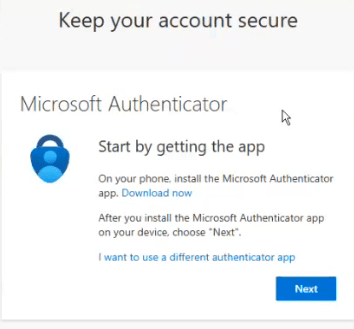
So I go to portal.office.com to sign in as them, and it’s just sitting at the “add a user” screen for some reason — didn’t do it earlier, doing it now. And on top of that, I have to use the Authenticator app anytime I sign in with any of these accounts.
Kill me.
This is a trial. By default it forces you onto the Authenticator app, for a trial, and I’m gonna have to do this dance for every single CSR. Is this overkill or what? Come on.
Step 1: Creating a Team to Assign Roles
- Go to Power Platform Admin Center → Environment Settings → Users + Permissions → Teams.
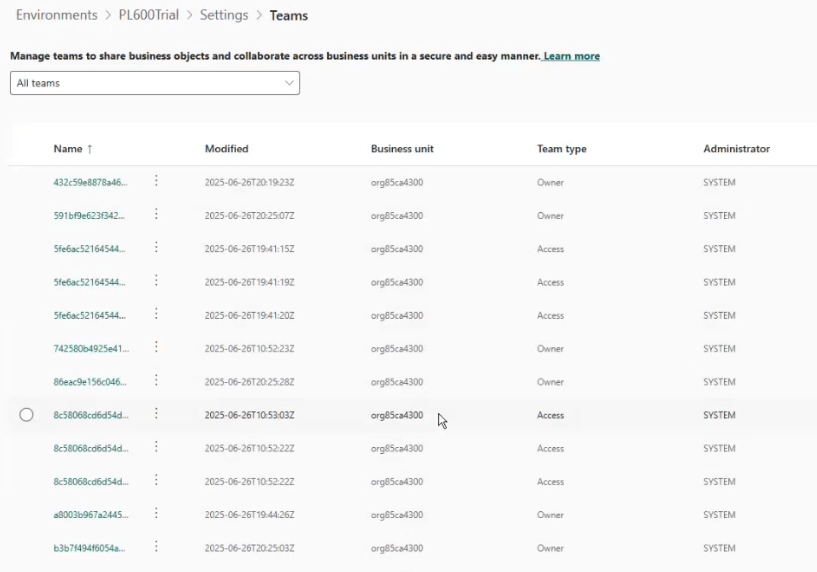
Sidebar — What is all this junk? Open up Teams (or the security role list, same deal) and you get hit with a wall of teams you never made — a pile of them named with a raw GUID. So what are they?
Near as I can tell they’re all system-created: Dataverse spins up a default owner team for every business unit automatically, and various apps and solutions add their own behind-the-scenes teams to hold their permissions — which I’m pretty sure is where the GUID-named ones come from. It’s plumbing. You didn’t make it, you’re not meant to touch it, it just ships with the environment.
The gripe: the default view dumps ALL of it on you with no filter, so your three real teams are buried in system noise. Same thing in the user list — a stack of #-prefixed application users and system accounts you never created. Harmless, but a genuinely terrible out-of-the-box experience. “Show me the teams I actually need to know about” should be the default. It isn’t.
Anyway…Click Create new team.
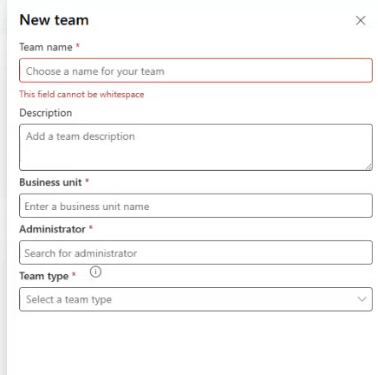
- Name it clearly, e.g., CSR Junior Team Role.
- Set Business Unit to the root org or the relevant BU.
- Administrator: Yourself, duh
- Choose Team Type:
- Ownership Team (classic, most common)
- Access Team (see sidebar—spoiler: you probably don’t want this, yet)
- Microsoft Entra ID security group (security group or office group) — we’ll get to this at the end.
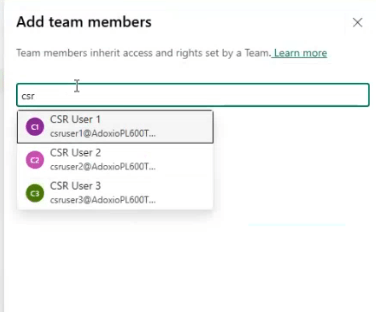
Now, Add team members (your users). Remember that you have to add any new users to the app (I hadn’t added CSR User 4 yet for instance).
Back to Teams → Manage Team → add CSR User 4. You can add as many members as you like. There it is.
Step 2: Assign Security Roles to the Team
In Teams, select your new team → Manage Security Roles.
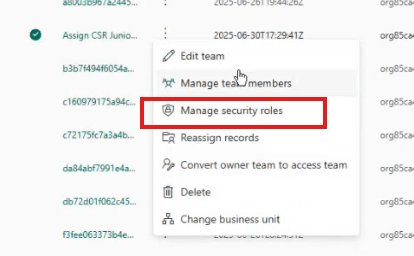
Assign all necessary roles Everybody in this team is gonna get:
- Basic User
- CSR Junior Team Member (our user-scoped case role from last time)
- Customer Service App Access
Click Save.
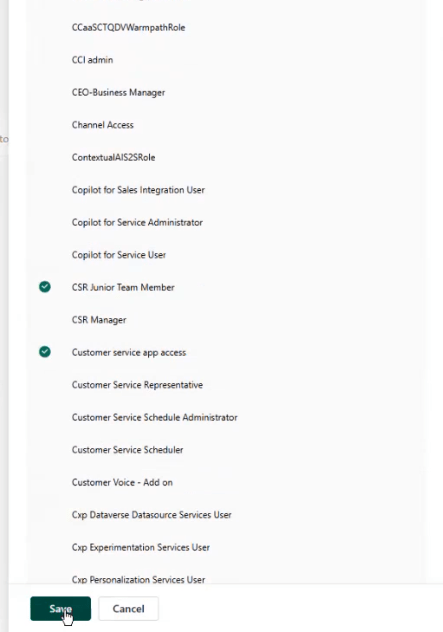
Now: Any user you add to this team automatically inherits all these roles.
- If you remove them from the team, their roles are revoked (clean!).
Does It Work? Let’s Test
Navigate to the Customer Service Hub as CSR User 4. Signed in — and of course, no cases are assigned to me yet. So as CSR User 1, I’ll create a case and set the owner to CSR User 4 directly. Done.
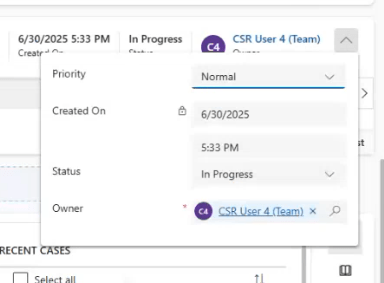
Now, back as CSR User 4, refresh All Cases — and there it is. They can see it. The team-granted roles are doing their job.

Step 3: The Interesting Part: Team-Owned Records
Now here’s where record ownership gets interesting. What if you wanted a whole team of people to work cases assigned to that team? You might think this is where business unit security comes in — but not necessarily, not for the basic scenario. Picture a team of case reps who don’t raise cases, don’t bring cases in — they just resolve whatever’s been handed to the team. A specialist team, an escalation team, whatever.
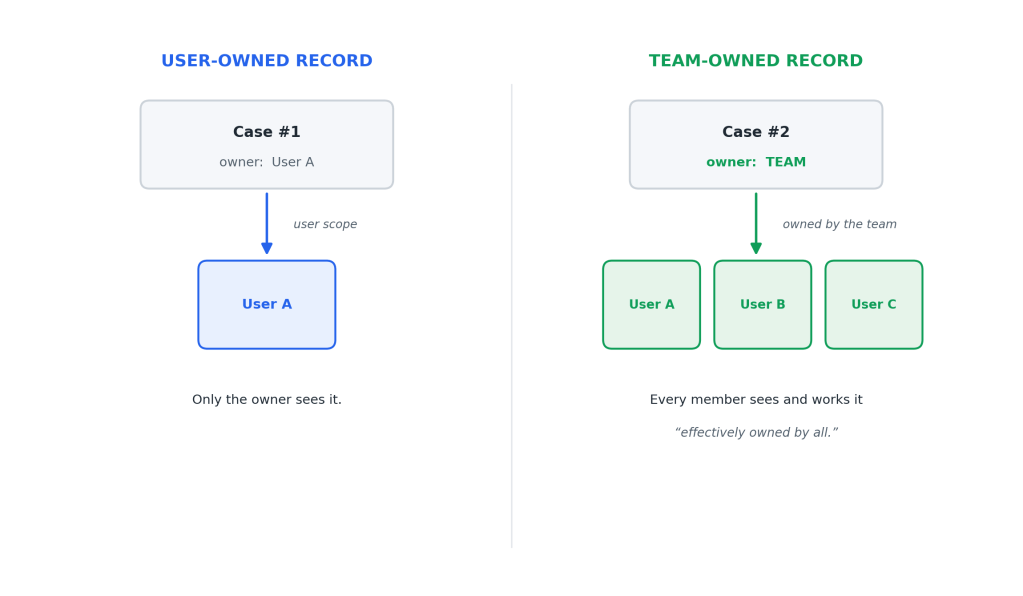
If their permissions are scoped to the individual user, they won’t see cases assigned to any other user. You could give them a business-unit-scoped role (future topic), or you can just assign the cases to the team itself. Because remember: in Dataverse, every row is typically owned either by a user or by a team. And that’s exactly where team type matters — only Ownership teams can own records.
How It Works:
- If your security role is user-scoped, you’ll see cases assigned to you or to any team you’re a member of.
- If a case is owned by a team, all team members can see and action it as if they “own” it.
Step 4: Testing and Validating
Back as CSR User 1, let’s make another case — I’ll call it “Queue Case.” This time, instead of an owner who’s a user, I look up the team I made and assign it there.
(And yeah — looking at the team picker, again, massive list of system teams and #users I never created. Don’t know if it’s a trial thing. It’d be great if the default view just showed real teams and real users. Anyway — separate topic for a separate day.)
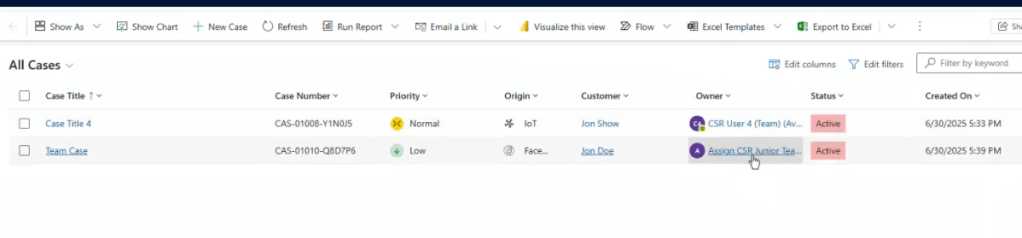
So I pick “Assign CSR Junior Role,” so that the case is owned by the team and not a user, and Save and Close.
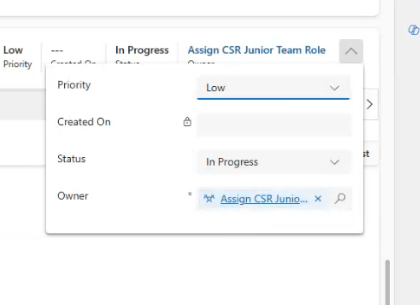
So now it’s owned by the Assign CSR Junior Role team. Go back to CSR User 4, and the case shows up for them. Why? They’ve only got user-scope permission — so why can they see a team-owned case? Because when a record is owned by a team, it’s effectively owned by every user in that team. It’s treated as though User 4 owns it directly, even though the team is the real owner.
Meet the Check Access Tool
Now’s a good time to bring in the Check Access tool — it’s the thing that tells you who can touch a record and where their access comes from. I’ll use it to compare two cases that got their access in completely different ways.
First up, a sample case owned by the system admin. Open it, click Check Access, then Who has access.
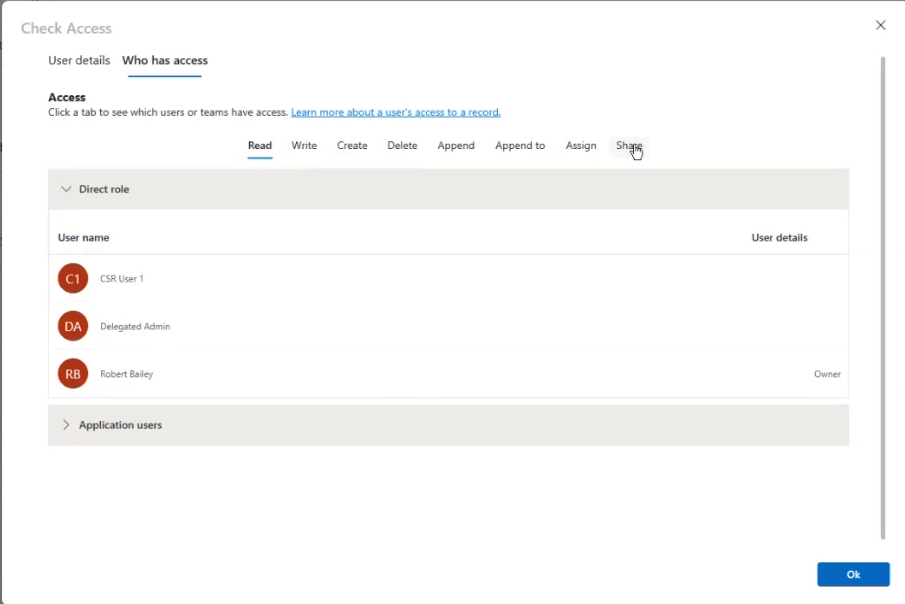
This view breaks access out by privilege, and you can see exactly who’s got it: via direct role, that’s CSR User 1 and me. Nobody else. The other tab, User Details, defaults to whoever’s logged in — but you can swap in any specific user and see where their access is coming from.
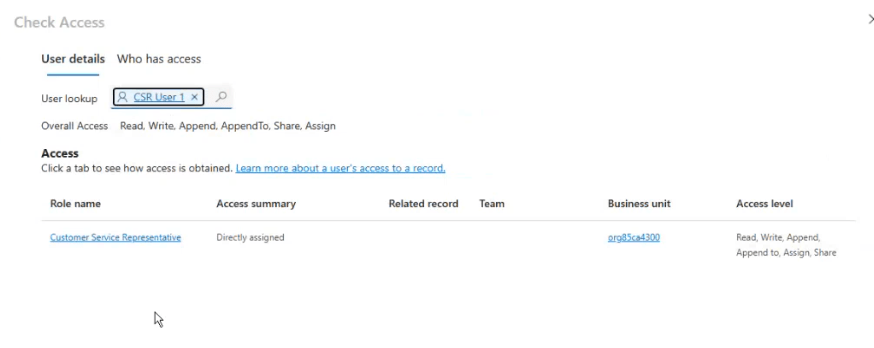
Drilling into that same record: CSR User 1 has access through the Customer Service Representative role, and the tool even spells out the access level. That’s the only person with real access here. Now look up CSR User 3, our Junior Team Member — they’ve got Append, Append To, Assign, and Share at org level, but no Read and no Create. That’s worth noticing. So on the Who has access side: nobody has Read except CSR User 1; User 3 shows up under Append and Assign because their role grants those; and CSR User 2 doesn’t appear at all.
Now let’s look at the Case owned by CSR User 2: CSR User 1 has access via the directly-assigned Customer Service Representative role. CSR User 2 has access because they were directly granted user-scope access to cases — notice they’ve got Read and Write. Under “Who has access,” you’ll see User 1, User 2, and so on.
Now if we check the case owned by the TEAM and check how CSR User 4 (the team-assigned one) got their access:
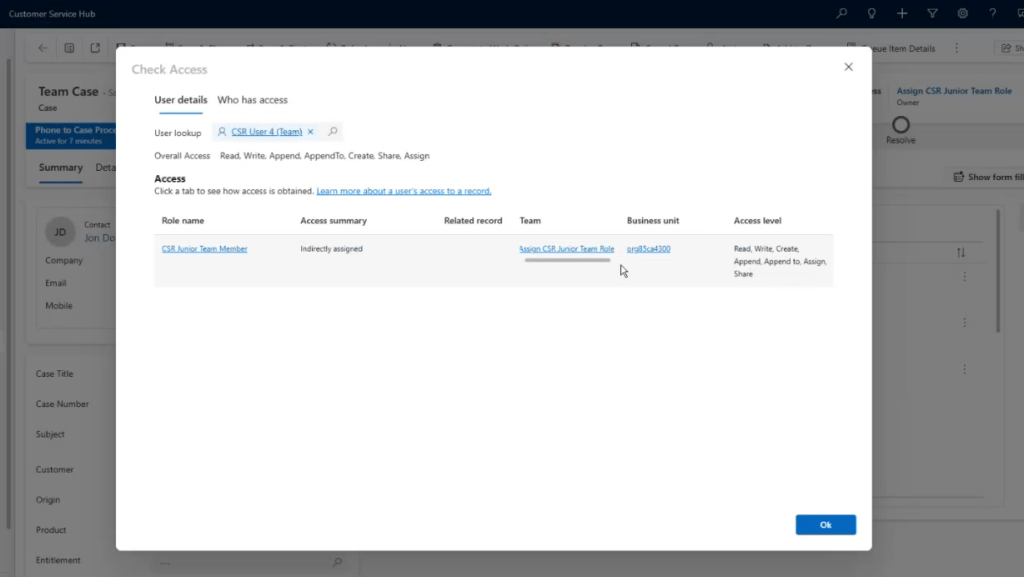
And here’s the payoff. Check access on the team-owned case and two things stand out. I see CSR Junior Team Member as the source of my access — but unlike User 3, who has that role assigned directly, here it’s indirect: I’ve got the role via the team. The team carries the role, the role grants user-scope access, so I’m in. The kicker — that’s the only access I have to this record. It doesn’t matter that I “own” it; my access comes purely from the team owning it, not from me.
Tip: you can always Check Access on yourself when logged in — handy for debugging why you aren’t getting access to something.
What About Two Members on the Same Team?
What happens if a second person is on the team, and a record is assigned to them directly? Let’s test. I’ll add CSR User 3 to the team (remember, User 3 already has the CSR Junior Team Member role assigned directly). (Teams → Manage Team Members → add CSR User 3. )
Now the team has User 3 and User 4.
Last piece. Refresh All Cases and here’s the lineup: one case owned by the team, one owned by User 3 directly. Both User 3 and User 4 are on the tea m now. Refresh as User 4 and they see the team-owned case plus the cases they personally own — but not User 3’s directly-owned case. Being on the same team doesn’t share your personal records; only team-owned records get shared around. Each member sees what they own plus what the team owns. Check it from User 3’s side and it’s the mirror image — their own case, plus the team’s. Make sense? Good.
Step 5: A Tangent on Access Teams
So….access teams. That sounds promising right? Before you dive down that rabbit hole, Let me at least create one so you can see the walls you hit.
Admin center → Teams → Create New → team type Access → “CSR Access Team.” Add members — no point adding CSR User 1 (already sees everything), so User 2, 3, and 4.
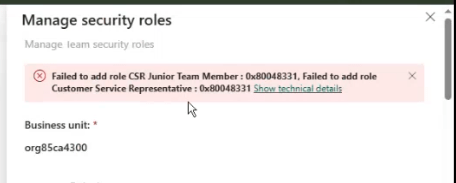
Now, cutting straight to the point — the moment I try to add a security role to this access team, I can’t. Error: “You can’t add security roles to an access team.” So: access teams cannot assign security roles.
OK, what about giving it a record, then? Try to assign the Team Case to the access team — I can’t even pick it in the lookup, and if I force it and Save: “You cannot assign the record to the access team. You can assign a record to the owner team.” So: access teams cannot own records either.
So what are they for, if they can’t hold roles and can’t own records? The idea is more like the opposite of sharing. By default, sharing is on — it’s assumed you know it and want it. Access teams are the inverse: off by default. You literally have to turn them on at the table level before they do anything.
Sidebar
Access teams cannot be assigned security roles and cannot own records.
You can’t assign cases to access teams, and they serve a different, more advanced sharing function.
(We’ll do a future blog post on “when and how to use access teams, and why they’re a pain to set up.”)
Quick access team facts:
- You cannot assign security roles to access teams (system will error out).
- You cannot assign record ownership to an access team.
To use them, you must:
- Enable access teams at the table level in the maker portal,
- Create an access team template (not covered here),
- Add a subgrid to the form (also not covered here).
NOTE: Not needed for 95% of scenarios — skip unless you’re building advanced, dynamic sharing models.
For the rest of this series we’ll stick to ownership teams. The two things to take away about access teams: they can’t assign security roles, and they can’t own records. To actually use them you have to rework your security model — create an access team template, then share records through the access team.
Step 6: Owner Teams vs. Entra Security Group Teams
Last thing. Remember that third team type — Microsoft Entra ID security group. Setting one up properly is its own separate part, but here’s the short version. Let me validate it: create a team, type Microsoft Entra ID security group — and by default it’s an Ownership team. (You can apparently configure it as an access team instead, but that’s rarer and needs manual setup, so never mind that.)
So functionally it behaves like an owner team — it can own records and be assigned security roles — except it’s linked to a security group. And honestly, best practice probably dictates you use Entra ID security group teams instead of classic owner teams. So every owner team like the one I built earlier — best practice says set it up as an Entra team. Once you’ve figured out your security model, you’d want to switch the team type from Owner to Entra ID security group. (I’m not sure you can change type after creating — so the move is: prototype with owner teams, then replicate them as security-group teams.)
Creating one is a few steps that I’ll record in a separate post. In a nutshell: security group teams are ownership teams, just linked to a security group. After that post, we won’t keep relitigating security-group-vs-owner — we’ll just use owner teams for the rest of the discussion.
Wrap-up
- Teams are a massive time saver for role assignment and security management.
- Owner teams (including Entra group-based teams) are what you want for 99% of role-management and record-ownership scenarios.
- Access teams are for advanced, dynamic, ad hoc sharing—park this concept until you need it.
- Always use Check Access to troubleshoot permission issues.
Hopefully you are enjoying my Security Series! Well, hopefully someone reads it, anyway. maybe someday it will end up an interesting piece of history – i learned a lot making this series; so – well hopefully someone else can benefit from this deep dive!!!


