

Microsoft has announced that Prompt Columns in Dataverse are now generally available. Normally, this is where I would make fun of Microsoft for adding Copilot to another screen and declaring victory, but this enables a lot of the bells and whistles we’ve seen with the premium BizApps to be embedded all over your custom model-driven apps and forms.
Under the hood, we have been able to generate content and write it to columns through Power Automate and AI Builder for a while, but now it’s more OOTB which as a low/no-code guy i’m a fan of.
That means the result of that summary is no longer trapped inside a chat response, a temporary Copilot interaction, or the output of a flow that someone still needs to wire back into the application. It becomes ordinary business data that can appear on forms, be displayed in views, trigger automation, feed dashboards, support reporting, and provide context to agents. One thing I worry about of course is the loop this could cause with AI generating data off of bad AI-generated data.
What Is a Prompt Column?
A Prompt Column is a Dataverse column whose value is generated using a natural-language prompt. You create the column on a Dataverse table, define the instructions you want the AI model to follow, and provide one or more columns from the record as inputs.
For example, imagine a Case table containing:
- A customer’s original description
- Case notes
- The selected product
- The customer’s account information
- An email related to the case
So, You could create a Prompt Column that asks the model to produce a short case summary, or one that classifies the case or one that flags the case as a possible escalation risk, etc. The generated results are then stored against the Case record rather than generated from scratch every time someone opens a Copilot panel. Microsoft currently allows up to five Prompt Columns per table.
Why Persisting the Result Matters
There is a major difference between AI displaying an answer and AI updating business data.
Suppose an AI assistant reads a customer complaint and tells an agent:
This customer appears frustrated and may escalate.
That is helpful for the person currently looking at the record, But once that observation is written into a Dataverse column, the rest of the platform can use it. This creates a recursive data quality issue to mitigate though, as if we didn’t really know about that.
A Practical Customer Service Example
Let’s say incoming cases contain a large Description field written by the customer. Some descriptions are clear, others are five paragraphs of background information, three unrelated complaints, a copied email chain, and the sentence “please fix this immediately” buried somewhere near the bottom.
You could create a Prompt Column called Case Summary with instructions similar to:
Summarize the customer’s issue in no more than three sentences. Identify the main problem, the affected product or service, and the outcome the customer is requesting. Do not add information that is not included in the case description.
You could then add the Case Description as an input column. This isn’t exactly the same as the case summary currently because that’s generated at request time and not stored in a column .
When a case is created or when one of the referenced input columns changes, the prompt runs and stores the result in the Case Summary column. If none of the referenced inputs change, the prompt does not run again and does not consume additional credits.
Now the summary can be:
- Added to the case form
- Included in a queue view
- Sent to a manager during escalation
- Included in an approval
- Used in reporting
- Supplied as context to another application or agent
You are not rebuilding the same summarization logic in every place that needs it.
Creating a Prompt Column
The basic setup is reasonably straightforward:
- Open the Dataverse table in Power Apps.
- Create a new column.
- Select Prompt as the data type.
- Create or configure the prompt.
- Add the Dataverse columns that should be used as inputs.
- Test the prompt against a sample record.
- Save the prompt and column.
- Add the column to the appropriate forms and views.
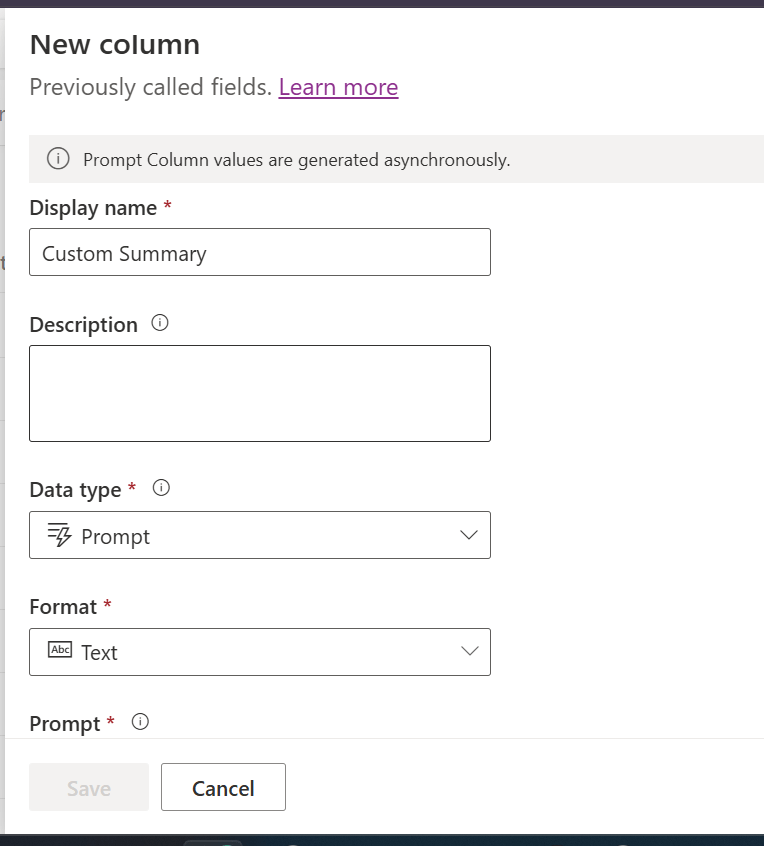
Microsoft allows multiple input columns in a prompt, including related lookup information and activity data such as emails. However, formula columns, file columns, image columns, and other Prompt Columns cannot currently be used as inputs.
That last restriction matters.
You cannot simply create one Prompt Column that summarizes a case and then feed that generated summary directly into another Prompt Column that determines risk. At least not by selecting the first Prompt Column as an input.
So before creating five AI fields and trying to build an elaborate chain of AI reasoning inside the table, design the data flow first.
The Execution Model Is Better Than I Expected
Prompt Columns run asynchronously.
That means saving a record does not need to wait while the AI model finishes generating its response. The application remains responsive, and the generated value is populated separately when processing completes.
Dataverse also creates corresponding Status and Details columns for each Prompt Column. These indicate whether processing has:
- Not started
- Started
- Completed
- Been skipped because filter conditions were not met
- Been skipped because none of the input columns changed
- Failed
That is important because asynchronous processing introduces an unavoidable delay.
A flow that runs immediately when a case is created should not assume that the Prompt Column has already been populated. You may need to trigger downstream logic when the generated column changes, check the status, or otherwise account for the fact that the AI result arrives later. This is not a synchronous calculated field.
You Can Control When It Runs
Microsoft has included filter conditions so that Prompt Columns only execute for eligible records.
For example, you might generate an AI risk assessment only when:
- The case priority is High
- The estimated value exceeds a threshold
- The customer belongs to a particular segment
- The record contains enough information to justify analysis
- The case originates from email
This matters because each execution consumes credits.
The Gotchas
Prompt Columns are useful, but there are several details worth understanding before dropping them into production.
Existing Records Are Not Automatically Backfilled
Existing records are not processed automatically. Changing the prompt definition also does not recalculate all existing records. Microsoft does not currently provide an on-demand execution option that recalculates the value without an update to an input column.
Prompt Column Values Are Not Audited
Microsoft’s current documentation states that Prompt Columns are not audited. Nuff said.
Generated Does Not Mean Correct
Prompt Columns use generative AI. In and of itself, that carries all the same concern as ever. But more importantly, that AI-generated content is STORED in dataverse then USED to generate more AI content.
Keep the original source, clearly label AI-generated fields, require review for consequential decisions, and do not let downstream automation treat unreviewed AI output as fact. More on this in a future post – but really it comes down to prompt engineering, letting all your prompts know what data to not trust. Governance, governance, governance.
Permissions Still Matter
Prompt execution can fail when the user does not have access to one or more of the input columns used by the prompt.
ALM Still Needs Thought
Prompt Columns are solution components, but Microsoft notes that creating or editing them requires the Block unmanaged customizations environment setting to be disabled.
That is a fairly significant implementation detail for organizations using managed environments and strict customization controls.
Before adopting Prompt Columns as a core design pattern, verify how they move through your actual development, test, and production environments. Do not discover your ALM limitations after building twelve business processes around them.
Where I Would Use Them First
Good candidates include:
- Summarizing customer cases
- Categorizing requests
- Extracting key information from emails
- Identifying likely escalation indicators
- Generating draft internal notes
- Classifying feedback by theme
- Highlighting missing information
- Suggesting a next action for human review
Thoughts?
Well, what do you guys think? leave your thoughts in the comments!


